# Gradients
**URL:** https://www.sketch.com/docs/symbols-and-styles/styling/gradients/ | **Last updated:** 2026-04-07
---
Gradients blend two or more colors across a layer. There are three types: Linear, Radial, and Angular.
## How to apply a gradient fill
Click the color well in the **Fills** section of the Inspector to open the [Color panel](/docs/symbols-and-styles/styling/the-color-panel/), then choose a gradient type from the fill type buttons at the top of the panel. Use the pop-up button in the panel header to switch between gradient types.
## Useful shortcuts
You can use the following shortcuts to adjust the color stops on the gradient bar:
| Action | Shortcut |
|--------|----------|
| Place gradient stop between 0% and 100% | 0-9 |
| Place gradient stop halfway between adjacent stops | = |
| Switch between stops | Tab |
| Adjust the stop position by 1% | ← → |
| Adjust the stop position by 10% | ⇧← → |
## Creating linear gradients
With a linear gradient , Sketch adds a gradient line with movable start and end points to your layer.
To change a stop’s color, click it in the gradient bar in the Color panel — the color section updates to show that stop’s color. You can pick a custom color or click **Variables** to apply a saved [Color Variable](/docs/symbols-and-styles/color-variables/) to that stop. To add another color, click anywhere on the gradient line on the canvas to add a new stop.
Drag a stop to change the look of your gradient, or select one and press backspace to delete it. Stop positions are expressed as a percentage value relative to the start and end points.
## Creating radial gradients
Editing radial gradients is similar to editing [linear gradients](#creating-linear-gradients), except that one point sets the center of the effect and the opposite point sets where it ends. Drag the non-color Ratio point to control the size of the effect — its position is expressed as a percentage value relative to the start point.
## Creating angular gradients
Angular gradients place color stops on a circle based on the maximum height or width of a layer. Drag the stops to adjust their position or click on the circle to add new ones. Stop positions are expressed as a percentage value relative to the end point.
## Editing gradient stops
Along with the gradient handles on your layer, you can use the gradient bar in the Color panel to adjust your gradient. Click a stop to select it and change its color, drag a stop to reposition it, click anywhere on the bar to add a new stop, or select a stop and press backspace to remove it.
Click to invert the gradient, swapping the order of all stops. Click to rotate the gradient direction by 90°.
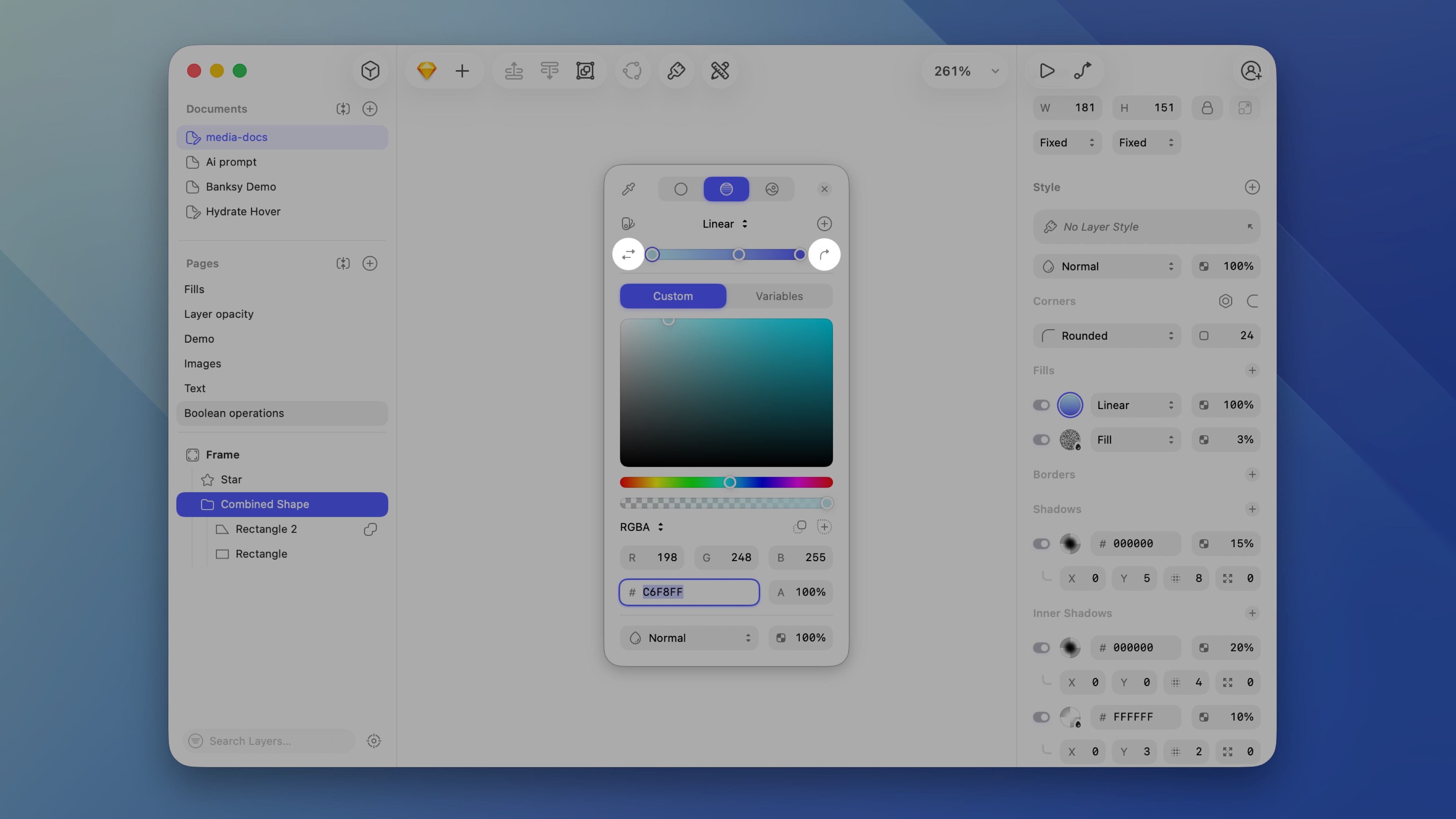
*Click invert to swap all stop colors, or rotate to shift the gradient direction by 90°*
## Gradient presets
Click in the Color panel header to switch to the gradient presets view. You’ll see all your saved gradient presets, organised by source — global presets and document presets. Click any preset to apply it to your layer.
To save the current gradient as a preset, click in the panel header and give it a name — just like when you create a Color Variable or layer style.
To rename a preset, control-click it and choose **Rename**. You can also control-click to move or copy it between global and document locations, reorder presets by dragging them, or delete one by control-clicking and choosing **Delete**.
## Gradient presets in Libraries
When you save a document preset and make that document a [Library](/docs/libraries/), it appears below the global and document presets to anyone who’s added the Library. If a Library preset is updated, a dot appears next to it to let you know.
You can also [copy and paste styles](/docs/symbols-and-styles/styling/fills/#copying-and-pasting-styles) or [reorder style properties](/docs/symbols-and-styles/styling/fills/#organizing-style-properties) across any style type.