# Overrides
> Customize Symbol instances using overrides for colors, text, images, Styles, and nested Symbols.
**URL:** https://www.sketch.com/docs/symbols-and-styles/overrides/ | **Last updated:** 2026-04-07
---
Overrides let you easily change the content or style of Symbol instances without affecting other instances or the Symbol Source. You can apply and manage overrides for nested Symbols, colors, text properties, images, and Layer Styles.
## How to apply overrides
Select a Symbol instance to see all the available overrides in the **Selection** section of the Inspector. Each type appears in its own section:
- Any nested **Symbols** within the Symbol and **Hotspots** that they contain
- The **Text** values you can set for the Symbol, along with any applied [Text Styles](/docs/symbols-and-styles/text-and-layer-styles/text-styles/)
- **Text Attributes** like font weight, size, and alignment
- Any [**Layer Styles**](/docs/symbols-and-styles/text-and-layer-styles/layer-styles/) applied to layers in the Symbol
- All the **Images** used within the Symbol, so you can replace them in one place
- All the **Colors** used in the Symbol — with [Color Variables](/docs/symbols-and-styles/color-variables/) shown first, making it easier to update them across all matching layers
Hover over any override to highlight every layer that uses it on the Canvas — so you can see every affected layer before you make a change.
The Inspector only shows the overrides you’ve added in your Symbol Source. For example, if a Symbol doesn’t include any images, the Images section won’t appear. Since the Inspector groups overrides by type, you can make bulk changes to colors, Styles, text, and images throughout a Symbol.
If you want to override something in a specific layer inside a Symbol, hover over the layer on the Canvas, hold ⌘, and click. This lets you select the layer, no matter how deeply it’s nested in the Symbol. Alternatively, you can double-click the Symbol instance on the Canvas to step into its layer hierarchy.
As you change your selection, the Inspector updates to show only the overrides that match the selected layer.
### Hiding layers in Symbol instances
You can hide any layer inside a Symbol instance. It’s useful to adapt the same Symbol to different scenarios. For example, if you only need 4 menu items instead of the 5 items set in the Symbol source.
There are several ways to hide layers. Select an instance and expand it in the [Layer List](/docs/interface-and-settings/the-mac-app-interface/the-layer-list/) by clicking the next to its name. Find the layer you want to hide and select any of these options:
- Hover over the layer you want to hide and click the eye icon to hide it.
- Use the contextual menu: select the layer you want to hide, ⌘-click it, then select **Hide layer**.
- Use the shortcut ⇧⌘H to toggle the layer’s visibility.
Hidden layers show this icon on the Layer List.
## Text overrides
You can change the contents of text overrides in a couple of ways. You can double-click a text layer in a Symbol instance on the Canvas and type new content, or type into the override field in the Inspector. Clearing the field resets it to the text in the Symbol Source. You can also use [Data](/docs/designing/data/) to populate text Overrides by clicking the Data icon .
### Styling text overrides
You can use Markdown-like syntax in Symbol instance text overrides:
- Use two asterisks `**` for **bold**
- Use two underscores `_ _` for _italic_
- Use two angle brackets `[ ]` for underlined text
Alternatively, you can select the text on the Canvas and use the shortcuts ⌘B, ⌘I, and ⌘U respectively.
> **Note:** To escape Markdown formatting, place a backslash (`\`) directly before the first formatting character.
## Overriding Text and Layer Styles
If you’ve set up [Text Styles](/docs/symbols-and-styles/text-and-layer-styles/text-styles/) or [Layer Styles](/docs/symbols-and-styles/text-and-layer-styles/layer-styles/) in your design, you’ll find these in the **Text Attributes** and **Layer Styles** sections in the Inspector. The drop-down lets you quickly swap a Style across the whole Symbol. If you want to override text properties like weight, color, or alignment for a specific layer, select the layer in the Layer List or by double-clicking through the Symbol on the Canvas, then adjust those properties in the Inspector.
## Image overrides
You can override any image layer or shape with a fill in the Inspector. You can either drag an image onto the preview, or choose **Choose Image…**. You can also use Data to populate individual image Overrides by clicking the Data icon .
## Color overrides
The **Colors** section in the Inspector lists all the colors used within a Symbol instance. Click any color to open the [Color Panel](/docs/symbols-and-styles/styling/the-color-panel/) — the change applies to every layer in the Symbol that uses it. You can also hover over the color swatch to highlight matching layers on the Canvas, or click the chevron on a color row to select them.
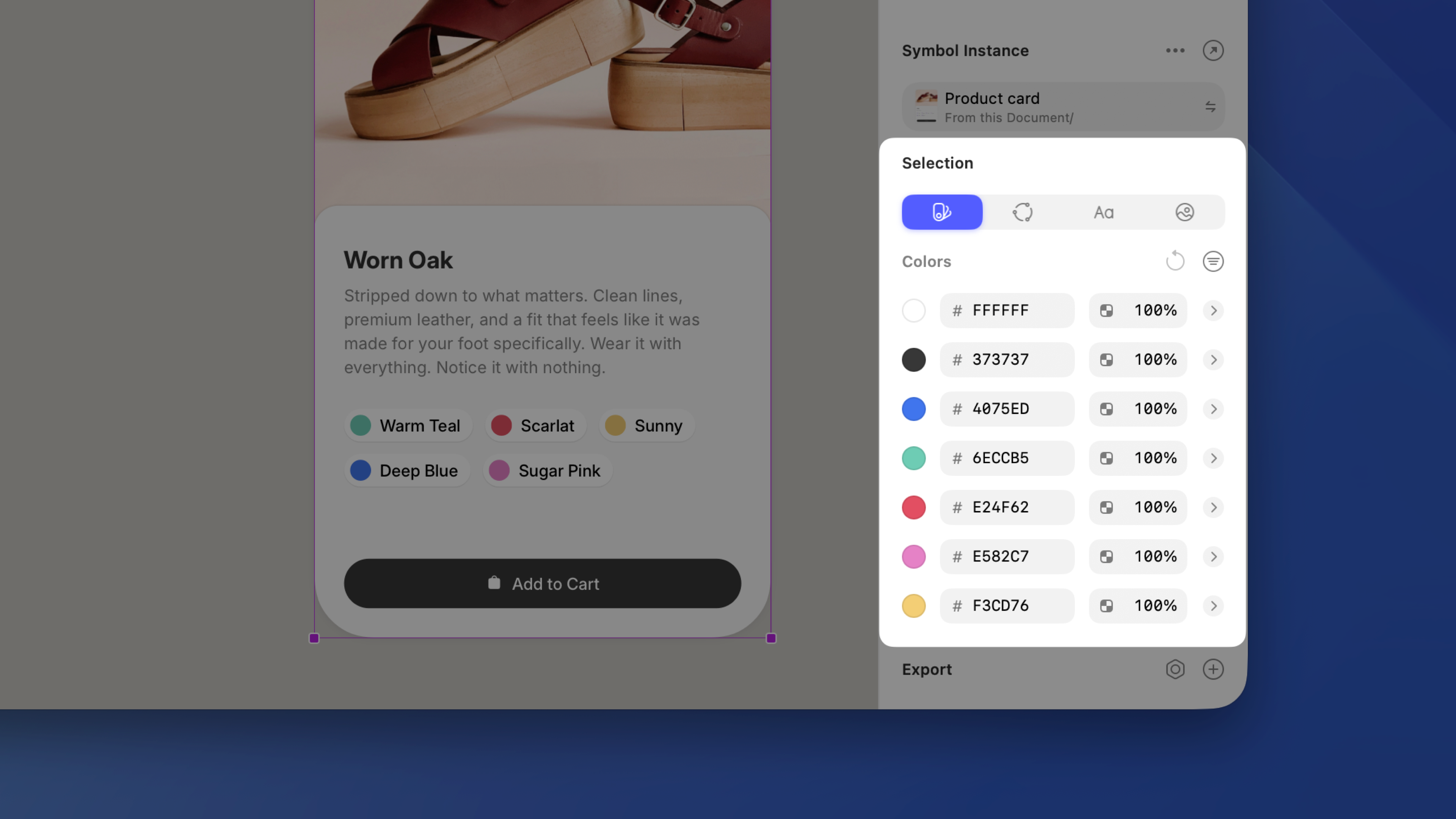
*The Colors section in the Inspector for a Symbol instance.*
You can reset individual color overrides or the entire section at once — see [Resetting overrides](#resetting-overrides) for details.
The Colors section also works outside Symbols — for plain layers or mixed selections. [Learn more about Selection colors](/docs/symbols-and-styles/selection-colors/).
## Resetting overrides
You can reset overrides at different levels, depending on how much you want to undo.
### Resetting a whole section
Click the **Reset Overrides** button next to the **Selection** section header in the Inspector. This removes every override in that section and restores the original values.
### Resetting individual overrides
For more control, hold ⌥ to reveal a **Reset Overrides** button on each override row. Hover over it to preview which layers will change on the Canvas, then click to reset just that override.
## Managing overrides
Select a Symbol Source and click the gear icon in the Inspector next to Manage Overrides — the panel shows all available overrides. By default, all overrides are enabled.
To restrict certain overrides, uncheck the box next to their name. To disable all overrides at once, turn off the **Allow overrides** option at the top.
## Overriding nested Symbols
The **Nested Symbols** section lists which [nested Symbols](/docs/symbols-and-styles/symbols/) your Symbol contains — you can swap them as you wish. Hover over any nested Symbol in the list to highlight it on the Canvas.
When you swap a nested Symbol inside another Symbol that uses a Stack layout, the new Symbol preserves the dimensions of the previous one. This means you don’t need to manually adjust sizes when swapping.
You can use the chevron to select specific nested Symbol instances and apply overrides to them.