# Canvas
> Configure color profiles, zoom behavior, nudging, and guide colors in Sketch.
**URL:** https://www.sketch.com/docs/interface-and-settings/mac-app-settings/canvas/ | **Last updated:** 2026-02-06
---
The Canvas tab lets you control how documents render, zoom, and behave while you work on the Canvas.
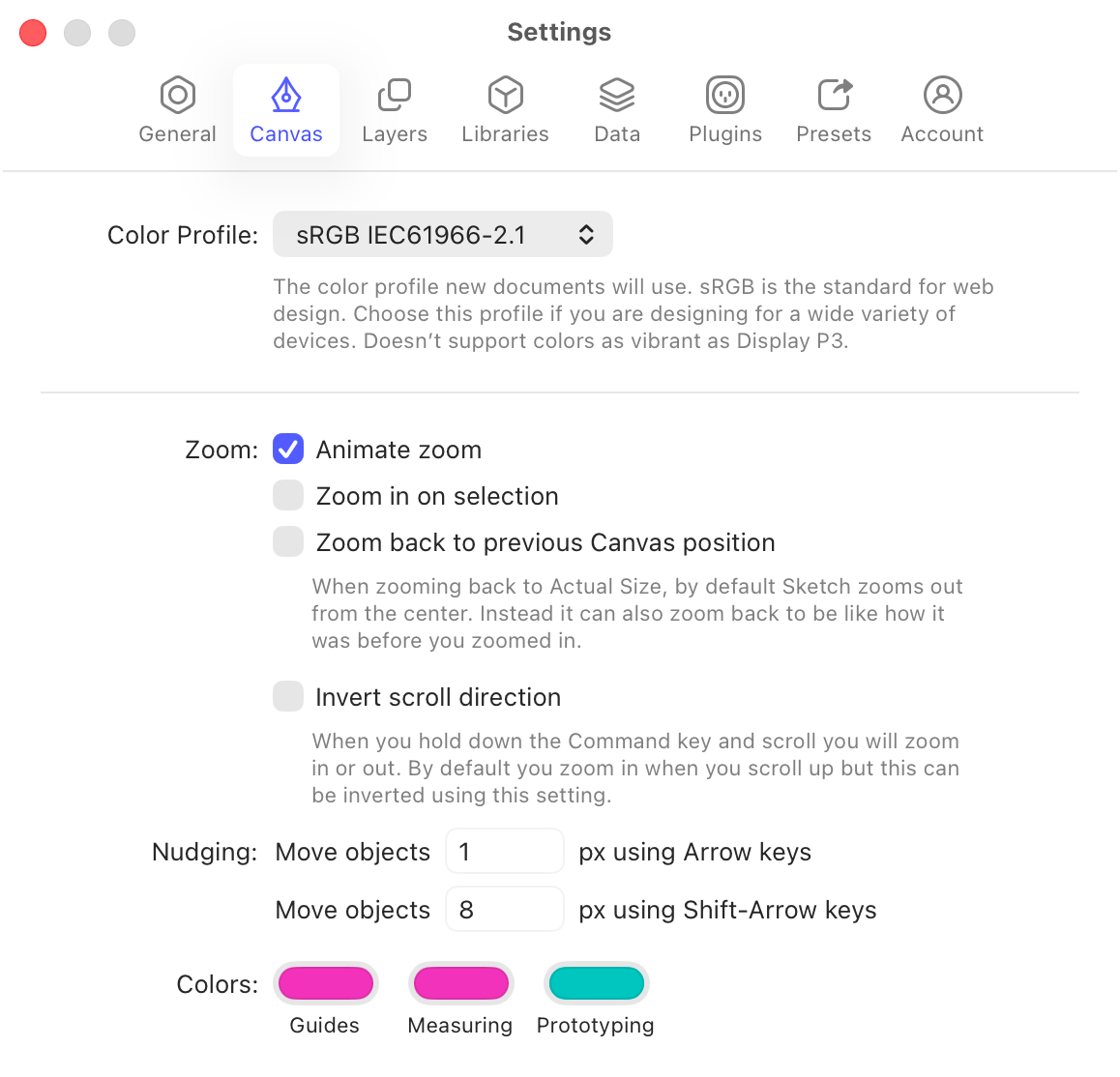
*The Canvas Settings in the Mac app*
1. **Color Profile** gives you different [color profile](/docs/designing/color-profiles/) options for the Mac app to render your documents with. If you want to set a different color profile in specific document you can do so in the [Document Settings window](/docs/interface-and-settings/document-settings/color-profile/). To learn more about color profiles and the difference between assigning and converting color profiles, read our documentation on [color profiles](/docs/designing/color-profiles/)
1. **Animate Zoom** applies a transition when zooming, helping you keep context as you move around the Canvas.
1. **Zoom In On Selection** zooms into your current selection instead of the center of the Canvas.
1. **Zoom Back to Previous Canvas Position** zooms back to your previous Canvas position instead of zooming out from the center.
1. **Invert scroll direction** changes how zooming works when you hold ⌘ and scroll. By default, scrolling up zooms in. When enabled, scrolling up zooms out.
1. **Nudging** controls how far layers move when you nudge them with the arrow keys, including the distance used when holding ⇧.
1. **Colors** customizes how [guides](/docs/interface-and-settings/the-mac-app-interface/the-canvas/#creating-guides) look, as well as [prototyping](/docs/prototyping/) links.