# Saving and managing documents
> Learn how to save and manage documents in Sketch with the help of our step-by-step guides and video tutorials.
**URL:** https://www.sketch.com/docs/getting-started/saving-and-managing-documents/ | **Last updated:** 2026-05-22
---
Once you’ve created a document, here’s how to save, organize, and manage it over time.
## Saving new documents
### To your Workspace
To save a new document to your Workspace, choose **File** > **Save** (⌘S) to open the Workspace window. Give your document a name and click **Save**. You can also save it to a specific [folder](/docs/getting-started/folders/) — click the **+** next to the folder list to create a new one.
Once you’ve saved your document, Sketch will automatically save progress in the background as you work — no need to manually save again.
> **Note:** You can also use ⌃⌘S to [add a star](/docs/sharing-and-collaborating/sharing-and-viewing-documents/creating-starred-versions/#how-to-unstar-a-version) or a [version description](/docs/getting-started/saving-and-managing-documents/#adding-descriptions-to-versions) to a Workspace document.
If you close a document while it’s saving to your Workspace, we’ll ask you whether you want to wait for the save to complete or cancel it. If you select Close and Cancel, the update will not upload to your Workspace.
**Other ways to save to your Workspace**
You can also save a document to your Workspace by clicking the **Collaborate** button in the toolbar , choosing a Workspace and a folder (if you’ve created one), then clicking **Save**.
Or drag one or more local documents onto the Workspace window — you’ll be able to choose a Workspace and folder to save them to.
### Saving documents locally
To save locally, click **Save to Your Mac** in the bottom left corner of the Workspace window, or select **File** > **Save to Your Mac** in the menu bar.
> **Note:** You can set Sketch to save documents locally by default using the **Open & Save To** preference in Settings.
If you’re using a Mac-only license, you’ll see the native macOS saving dialog instead of the Workspace window when you save.
## My Drafts
In **My Drafts**, you can store documents and [Libraries](/docs/libraries/) that aren’t ready to share with the rest of your Workspace yet. By default, only you can access what you save here.
> **Note:** If you leave a Workspace, are removed from one, or delete your account, your drafts become accessible to Workspace admins.
In the Mac app, you’ll see **My Drafts** in the sidebar of the Workspace window. You can also access it from the sidebar in the web app.
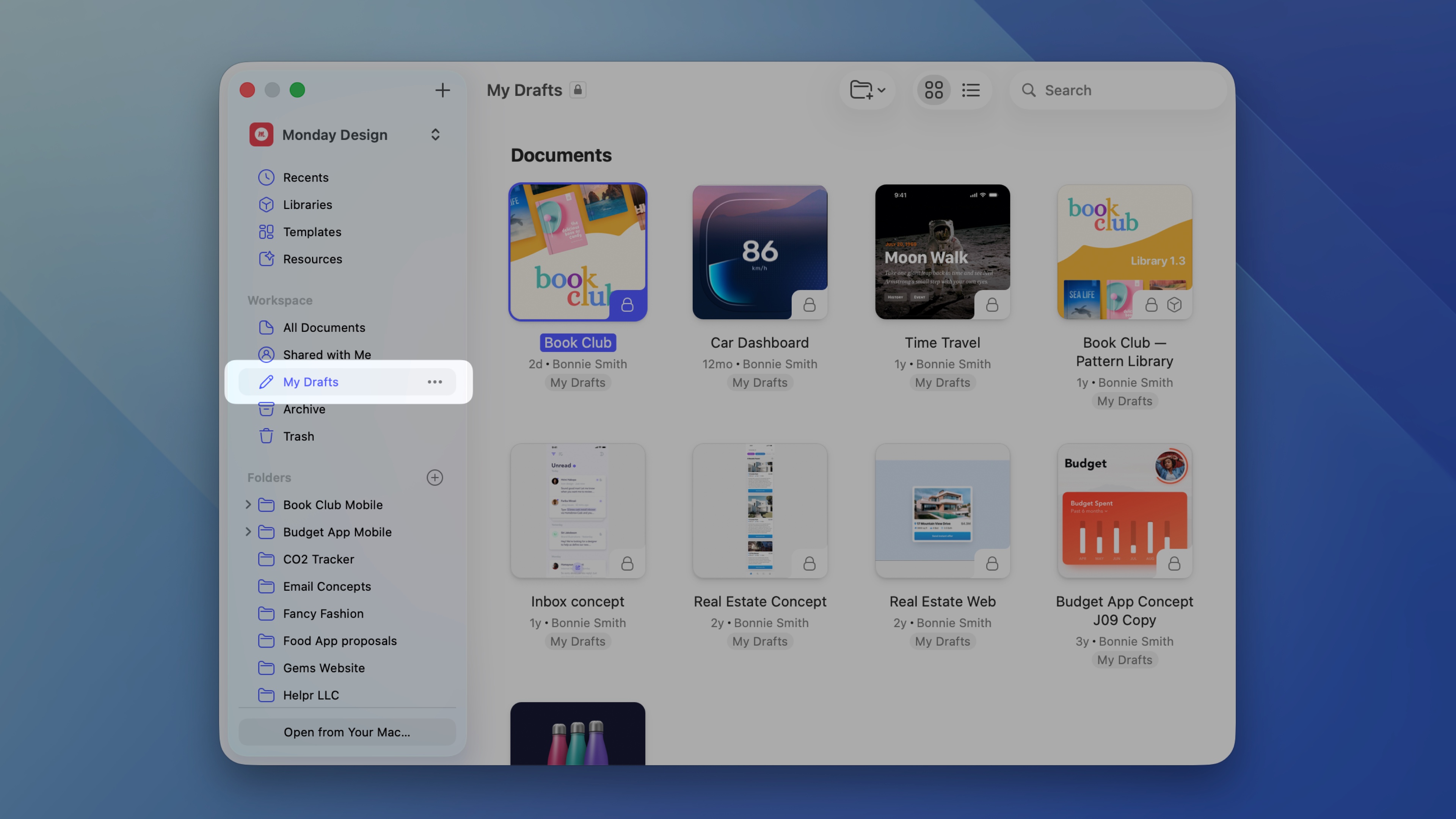
*Where to find the My Drafts folder in the web app*
You can save a new draft document to My Drafts just as you would [save any other document to a Workspace](/docs/getting-started/saving-and-managing-documents/#saving-new-documents). In the Mac app, select **File** > **Save** or press ⌘S. In the menu that appears, select Workspace, choose the Workspace in which you want to save your document, and select **My Drafts** from the dropdown menu.
Alternatively, drag and drop documents from your desktop into My Drafts in the Workspace window of the Mac app.
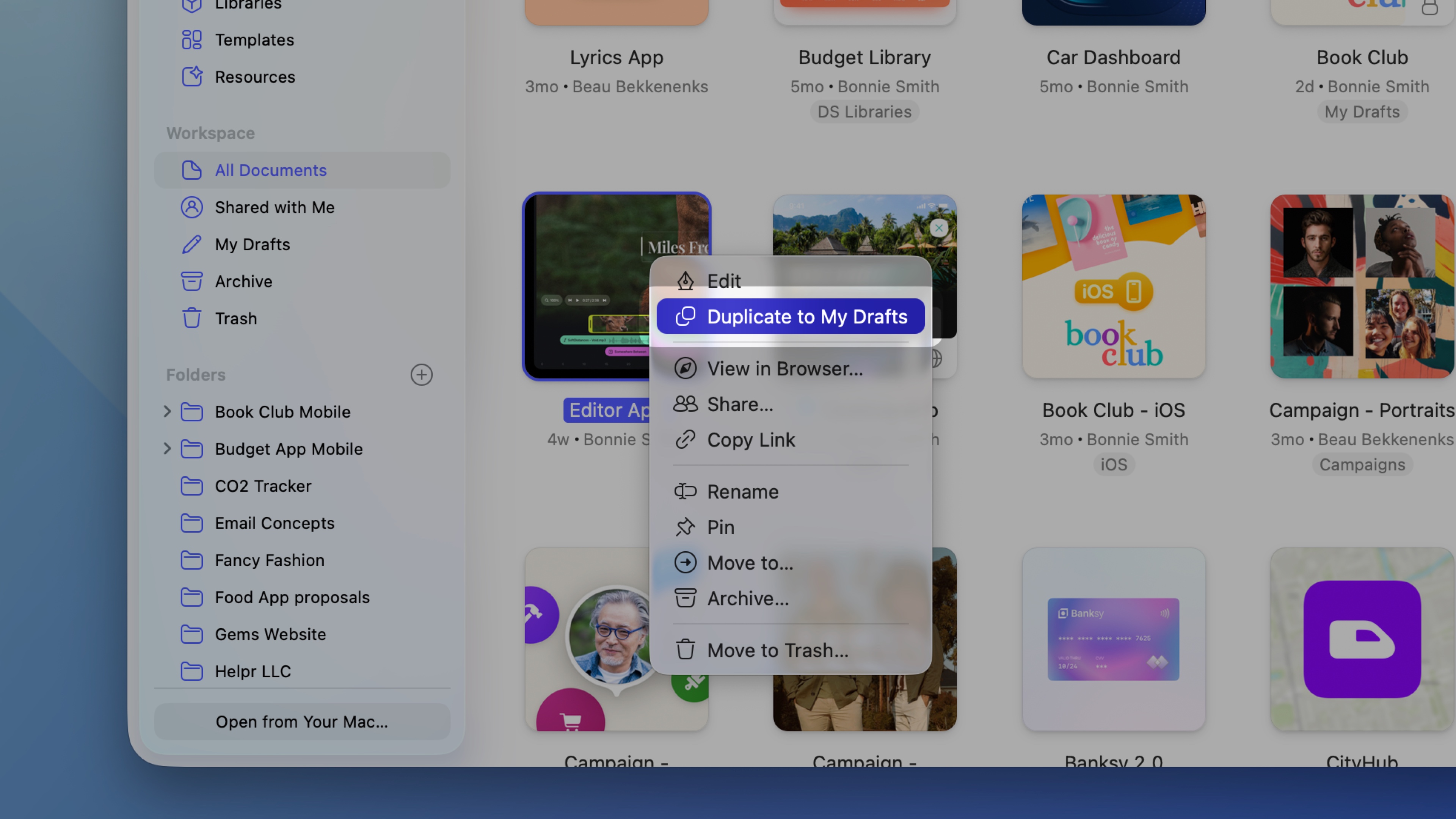
*How to save a document to the My Drafts folder from the Mac app*
### Sharing and moving drafts
To share a document in **My Drafts**, you can invite people in that document’s [individual share settings](/docs/sharing-and-collaborating/sharing-and-viewing-documents/managing-share-settings/), or move it to another location in your shared Workspace. People you invite will see your document in their [Shared with Me tab](/docs/sharing-and-collaborating/sharing-and-viewing-documents/shared-with-me/).
In the web app, you can move documents from **My Drafts** by hovering over the document’s thumbnail, clicking the icon and choosing **Move**. From there, you can move the document to a folder in the same Drafts, a shared folder in the same Workspace, or the **My Drafts** folder of any other Workspaces where you are also an Editor.
If you move a document out of **My Drafts**, everyone in your Workspace will be able to view it and Editors will be able to open it in the Mac app.
You can delete a draft in the same way that you [delete any other document](/docs/getting-started/saving-and-managing-documents/#deleting-documents). When you delete a draft it will remain in your Workspace’s Trash for 90 days, but only you will be able to see it there.
## Managing documents
### Renaming documents
Choose **File** > **Rename**, enter the document’s new name in the Title Bar, then press Enter to save.
You can also rename documents from the Workspace window. Right-click or ⌃-click over a document’s thumbnail and select **Rename**.
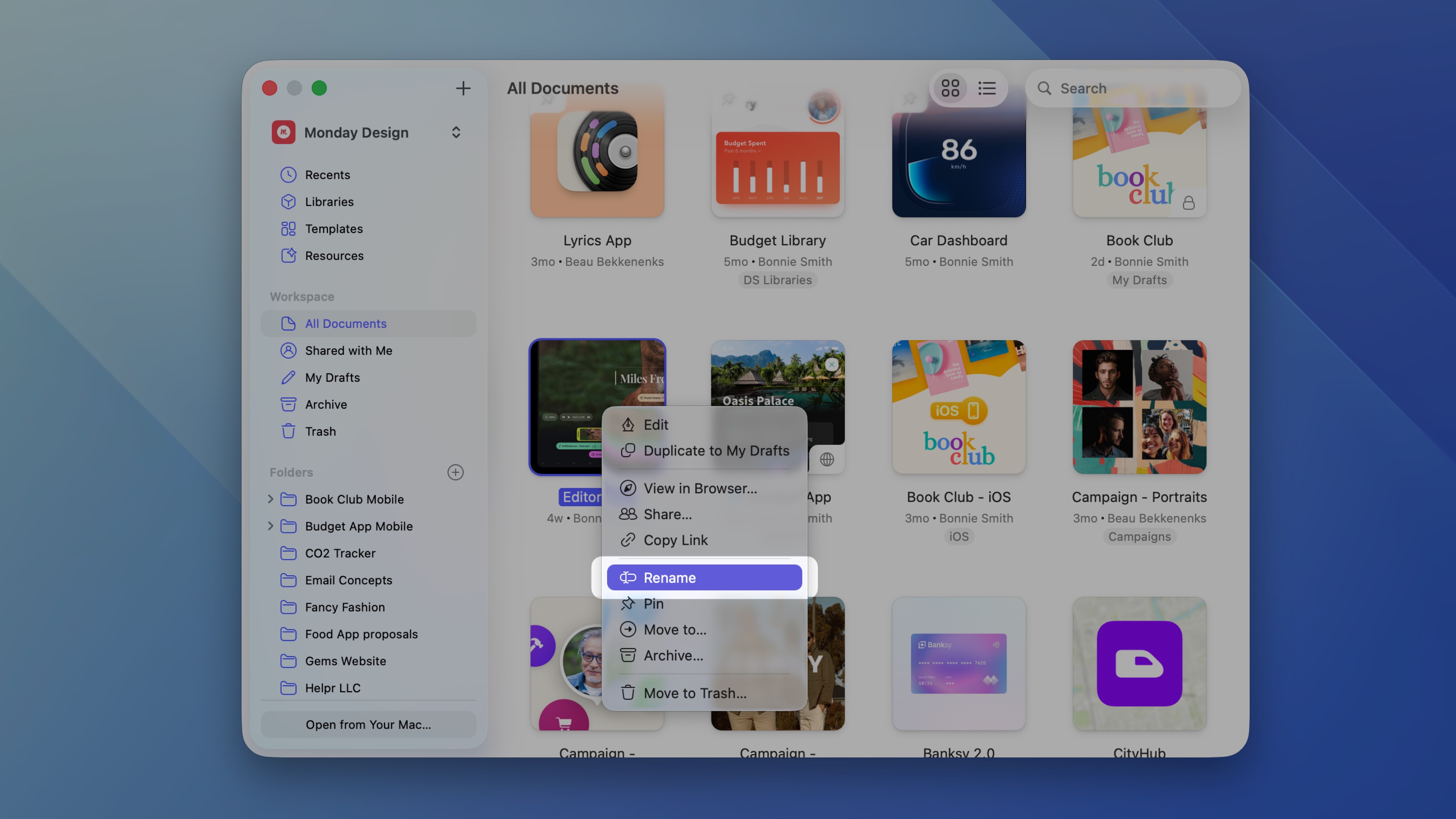
*How to rename a Workspace document in the Mac app*
- From your Workspace or folder view: hover over your document’s thumbnail, choose , then **Rename**.
- From the document or Artboard view: click the next to the document name in the right-hand sidebar, then type in a new name.
### Searching for documents
Use the search bar in the top-right of the [Workspace window](/docs/getting-started/creating-opening-and-viewing-documents/#opening-workspace-documents-in-the-mac-app) to find documents by name or by the author of the latest update. Your search stays in place when you switch between sidebar views, such as Recents, All Documents, or Shared with Me.
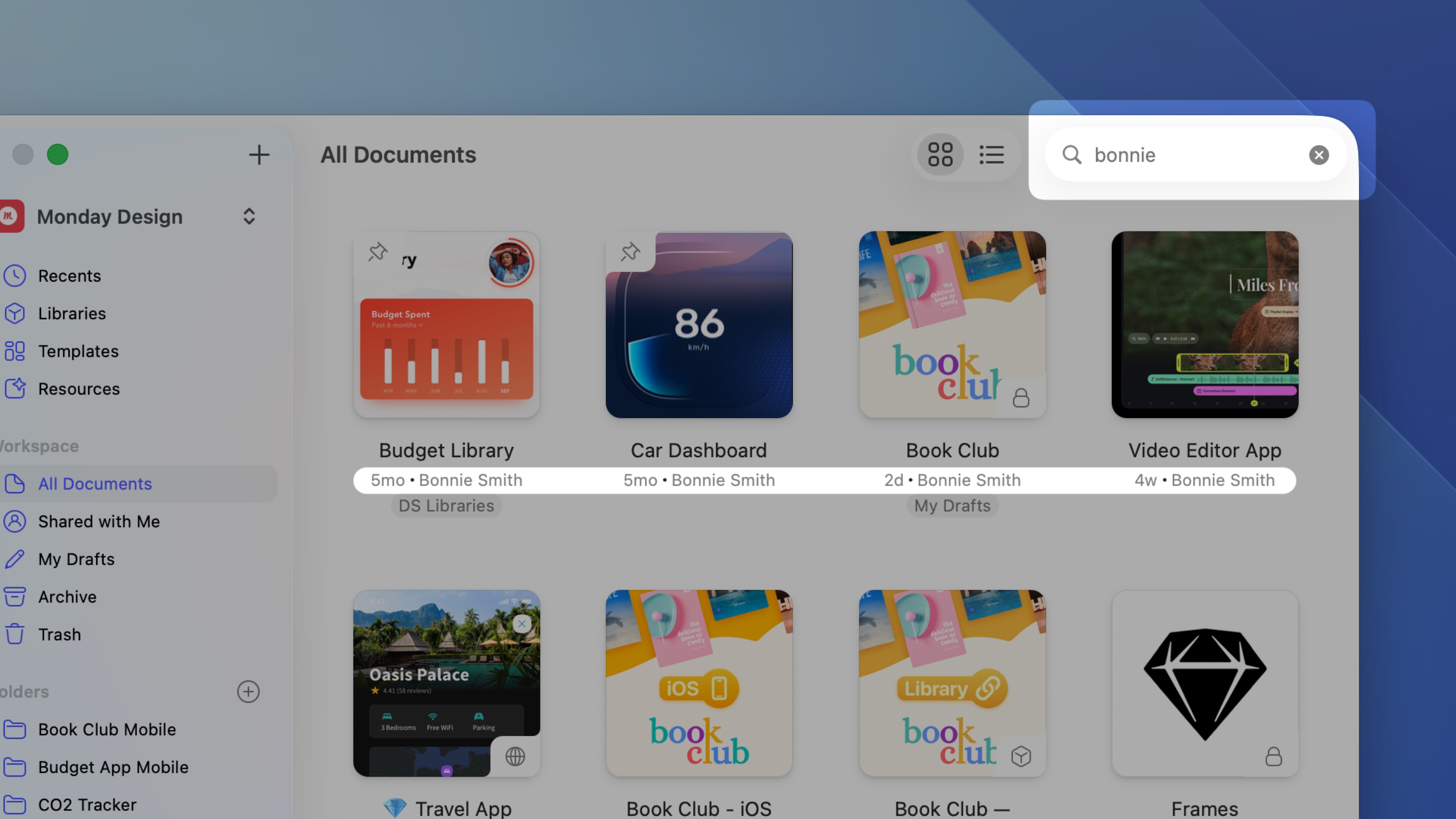
*How to search by author of the latest update of a document in the Workspace window*
Use the search bar to find documents by name or author, and choose whether to search within a specific folder or across all documents in your Workspace.
> **Note:** Search results are filtered based on the view you’re currently browsing in. For example, if you’re viewing a specific folder, searching here will only give you results from that folder.
### Pinning documents
You can pin important documents to the top of the list in the web app and Workspace window in the Mac app. Pinned items are personal to you, so you can use them in whatever way suits your workflow best.
Open the Workspace window, right-click on a document thumbnail and select **Pin Document**. To unpin it, follow the same steps and select **Unpin Document**.
Hover over a document’s thumbnail, click and select **Pin Document**. To unpin it, follow the same steps and select **Unpin Document**.
### Creating preview thumbnails
You can set any frame within a document as a preview thumbnail. The thumbnail will appear in the web app, Mac app, iOS app, and in Finder. To use a specific frame as the preview thumbnail for a document, Control-click on its name on the Canvas or in the Layer List and select **Set As Thumbnail** from the contextual menu. Selecting the option again will remove it from the frame.
If you don’t select a frame for a thumbnail, Sketch will automatically use the first frame of the first page in your document — provided its dimensions are at least 250×250px.
### Duplicating documents
Occasionally you may want to duplicate a Workspace document to work on it separately. You can duplicate documents from the Mac app or from your web browser. Duplicate documents are always based on the original document’s most recent version.
Open the document you want to duplicate and select **File** > **Duplicate** in the menu bar or press ⇧⌘S. This will create a copy you can edit further or save right away in your Workspace or locally on your Mac.
When you duplicate from the Workspace window, the copy will be automatically saved in the **My Drafts** folder. Open the Workspace window, right-click the document’s thumbnail, and select **Duplicate to my Drafts**.

*How to duplicate a document to the My Drafts folder from the Mac app*
In the document list, hover over a document thumbnail and click on , then select **Duplicate**. Choose if you want to duplicate the document to the same folder or to your Drafts folder.
If you’re browsing a document’s contents, click on in the toolbar and select the **Duplicate** option.
### Getting a local copy
Depending on your [Auto Save settings](/docs/interface-and-settings/mac-app-settings/general/), you can either choose **File > Duplicate** (Auto Save enabled) or **File** > **Save As** (Auto Save disabled) to save a new copy of your current document. In the save sheet, you can choose to save it locally (on your Mac) or to a Workspace.
> **Note:** If you have Auto Save enabled, you’ll only see **Duplicate** in the File menu, but you can hold down ⌥ to show **Save As** instead.
You can download any document in your Workspace by hovering over a document’s thumbnail, clicking and selecting **Download document**. Alternatively, open a document, click on in the toolbar and select **Download document** from the menu options.
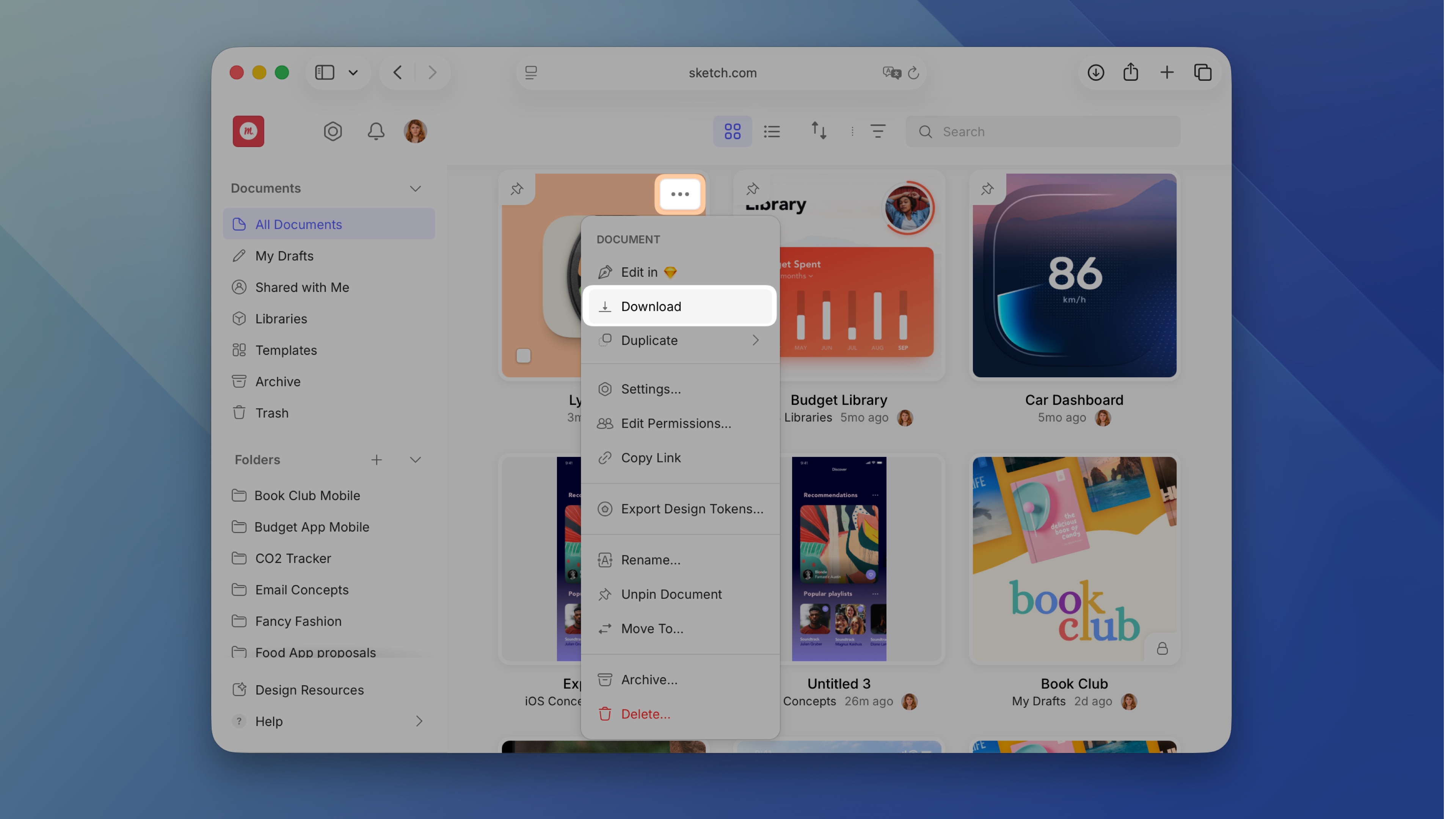
*How to download documents from a document’s thumbnail*
> **Note:** Downloading from an open document will get you the [version](/docs/getting-started/saving-and-managing-documents/#creating-and-viewing-document-versions) you’re **currently viewing** — even if that’s an older version.
## Versions
### Creating and viewing document versions
To manually save a new version, open a document in the Mac app and select **File** > **Create Version** — or press ⌃⌘S. Add an (optional) description, choose whether you want to star it, and click **Save**.
You can view all versions under the **Versions** panel in the web app. Click on any version to view it. When you’re viewing an older version, you can click the **See Latest Version** button in the top-right to go straight to the latest update.
You can also see versions of specific Artboards (if they’ve changed) when viewing an Artboard.
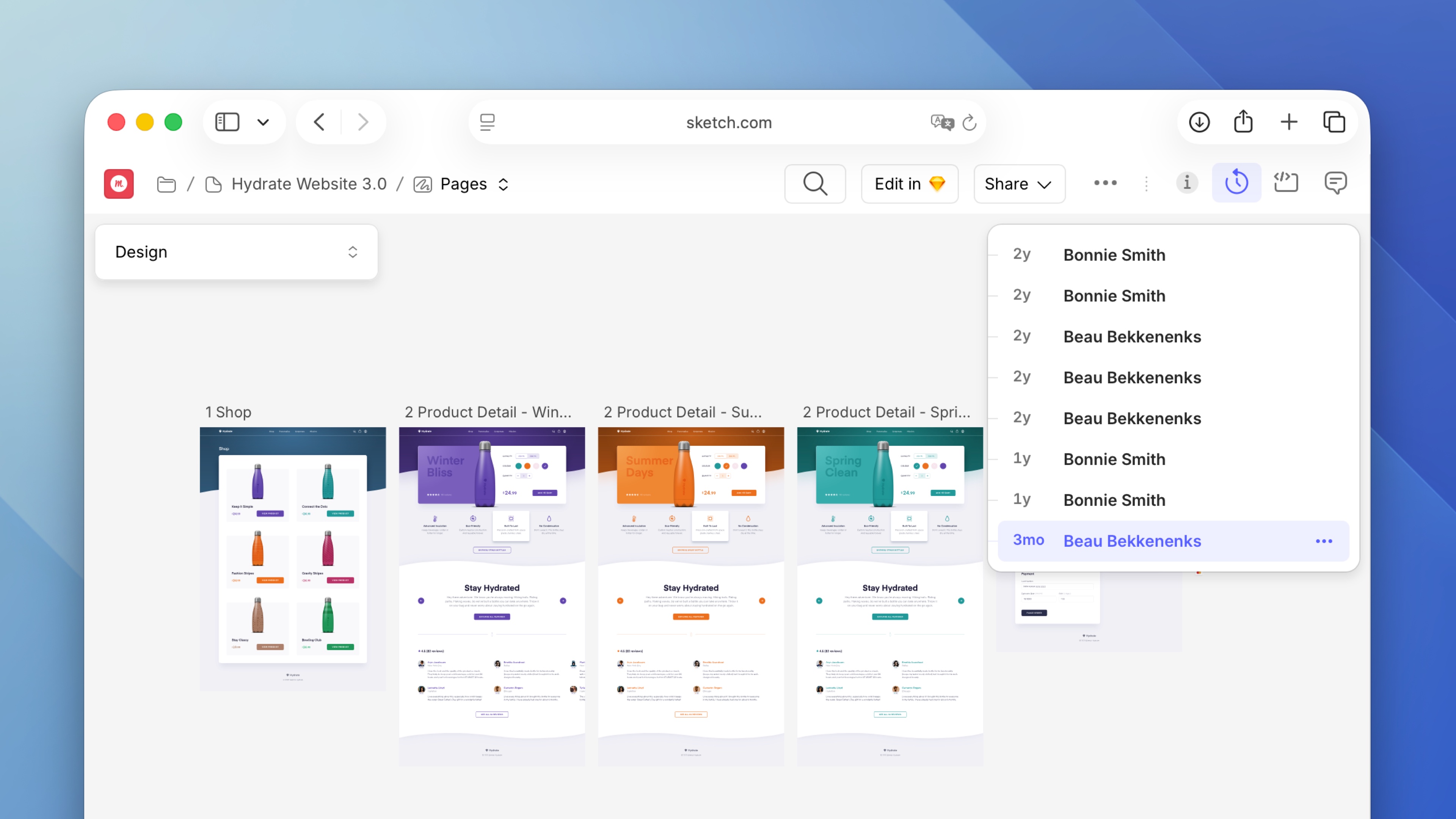
*Viewing versions in the web app*
### Adding descriptions to versions
You can add a description to any version in the web app to highlight key milestones or important changes in your document’s history. For example, you could make a note of what’s changed to your design or list the latest components you’ve added to a Library.
Head to **File** > **Create Version** or press ⌃⌘S in any open document. Enter an optional description in the dialog that appears and, if you want to, [add a star](/docs/sharing-and-collaborating/sharing-and-viewing-documents/creating-starred-versions/#how-to-star-a-version). When you’re done, click **Save**.
Open a document and select the **Versions** panel . Hover over any version, then click on and choose **Add Description**.
You can also add a description whenever you [star a version](/docs/sharing-and-collaborating/sharing-and-viewing-documents/creating-starred-versions/#how-to-star-a-version). Simply type in a quick summary in the text box.
To edit or delete a version description, select a version, open the **Document Details** panel, and click the **Edit** icon next to the description, where you can amend or delete the description entirely.
> **Note:** When you unstar a version, Sketch will still show any description you added to it. But don’t worry — if you want to remove it, you can do it manually using the process above.
### Deleting versions
Open your document and hover over the version you want to delete in the **Versions** panel , click on and choose **Delete**. You will need to confirm that you want to delete that version by clicking **Delete Version** in the confirmation window that appears.
> **Note:** If there is only one version in the document’s history, you won’t be able to delete it.
Once you’ve saved a document to your Workspace for the first time, Sketch saves your changes regularly in the background while you work — so there’s no need to keep pressing ⌘S.
However, if you want to publish a new version that’s visible in the web app’s **Versions** panel, create a version by choosing **File > Create Version** or pressing ⌃⌘S.
If you still don’t see your latest changes, quitting Sketch will also sync any unsynced edits.
## Deleting documents
When you delete a document in your Workspace, it’ll land in the Trash . Sketch will permanently delete any documents that have been in the Trash for 90 days, but up until that point you can easily restore them.
Control-click on a document’s thumbnail in the Workspace window and choose **Delete Document**, or click once on the thumbnail to select it and press the backspace key on your keyboard.
There are three ways you can delete a document:
- From your Workspace or folder view, hover over your document’s thumbnail, click the icon, choose **Delete** and confirm your decision in the dialog that appears.
- You can also drag and drop a document’s thumbnail to the Trash in the sidebar.
- If you’re viewing a single Artboard or in the document’s overview, click the on the right of the Nav Bar and choose **Delete**.
### Restoring documents
To restore a file in the Trash , click on the document’s preview and click **Restore**. You can also hover over the document’s preview in the Trash, click the icon and select **Restore**.
### Permanently deleting documents
To permanently delete a document from the web app, find it in the Trash, hover over its thumbnail and click the icon and select **Delete Permanently**. When you delete a document permanently, it will also remove all its activity and history for your whole team.
> **Note:** You need to be a Workspace Admin or Owner to permanently delete documents.
You can do the same in the Mac app by right-clicking on a Trashed document and selecting **Delete Permanently**.
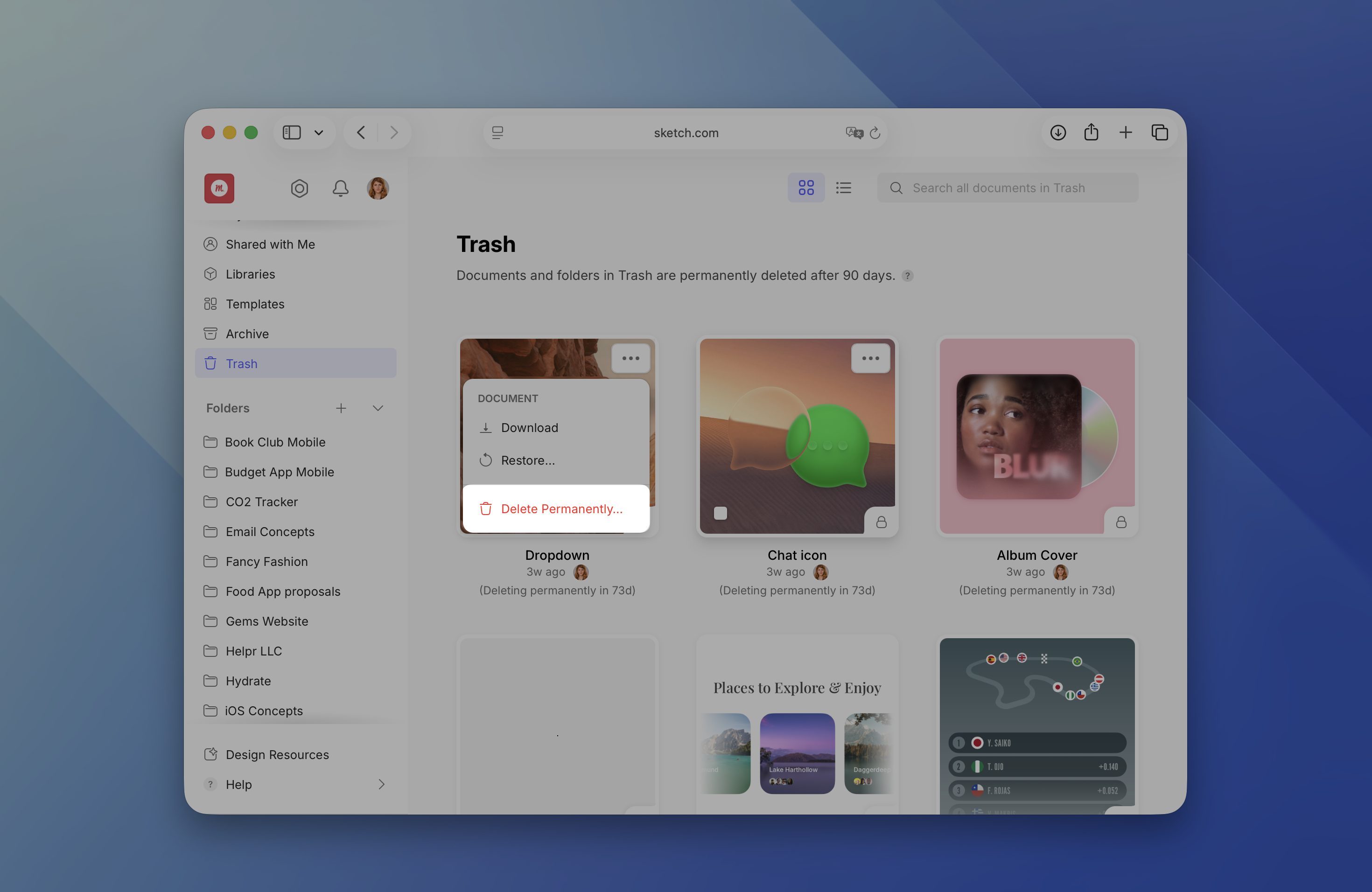
*How to permanently delete a document in the web app*
### Emptying the Trash
> **Note:** You need to be a Workspace Admin or Owner to empty the Trash. You can’t undo this action, so make sure you don’t delete anything you may need later on.
Right-click on the Trash in the Workspace window and select **Empty Trash**.
Hover over the Trash icon in the sidebar, click and select **Empty**.