# Creating, opening & viewing documents
> Learn how to create, open and view documents in Sketch with the help of our step-by-step guides and video tutorials.
**URL:** https://www.sketch.com/docs/getting-started/creating-opening-and-viewing-documents/ | **Last updated:** 2026-05-19
---
Create your first document, open it in the Mac app or web app, and learn your way around your Workspace.
## Creating a new document
To create a new document in the Mac app, click the plus icon at the top of the sidebar in the Workspace window, choose **File** > **New**, or press ⌘N.
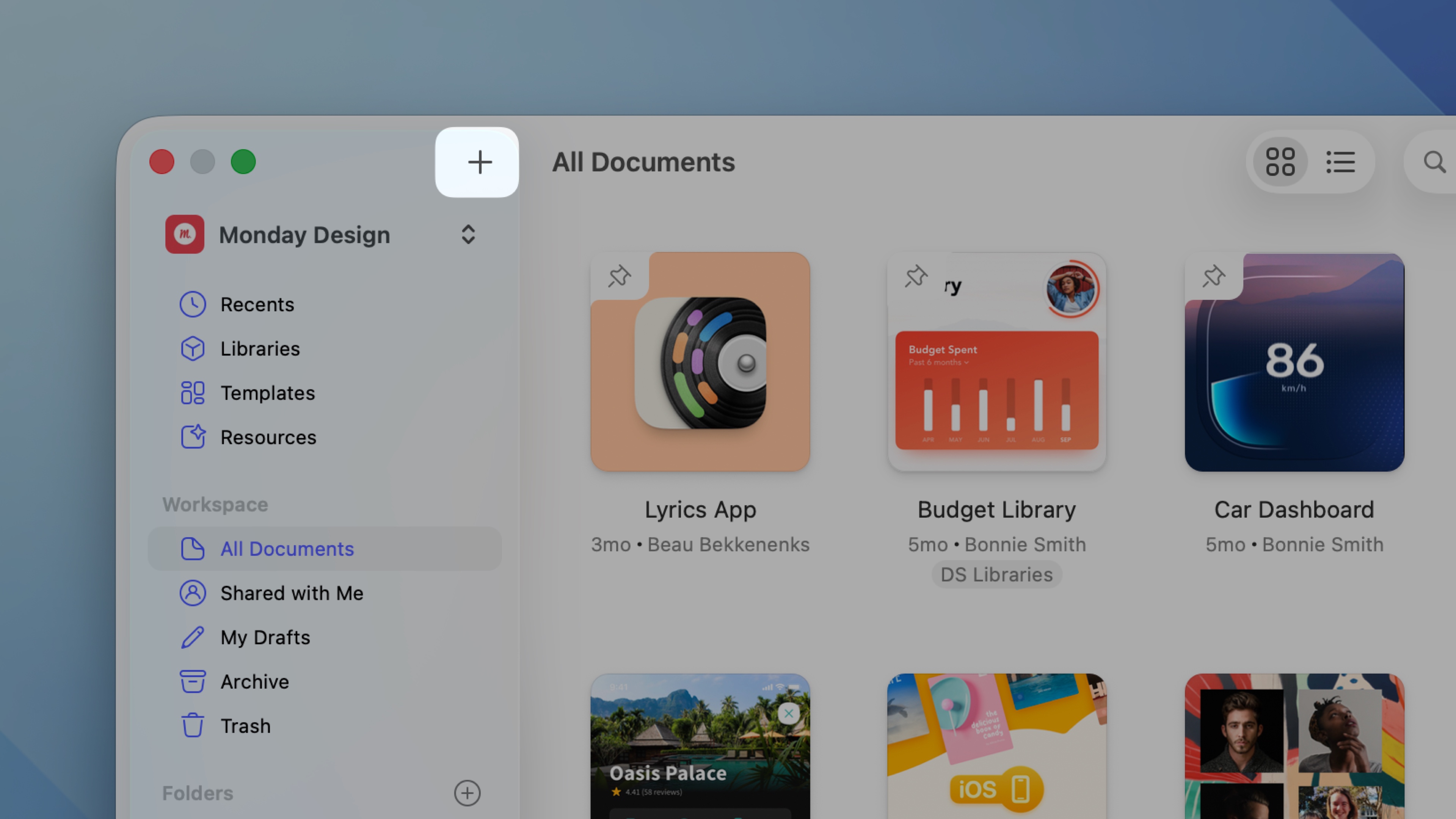
*Create a new document from the Workspace window using the plus icon, File > New, or ⌘N*
## Opening Workspace documents in the Mac app
### The Workspace window
The Workspace window will pop up every time you open the Mac app. Double-click any document to open it, or choose **File** > **Open from Workspace**, or press ⌘O. You can also switch between Workspaces (top-left), browse recent documents, [Libraries](/docs/libraries/) and Resources, choose a [template](/docs/symbols-and-styles/templates/), or create [new folders](/docs/getting-started/folders/).
If you want to open a document you already saved locally to your Mac, click **Open from Your Mac** at the bottom left of the Workspace window.
> **Note:** You can set the default location to open documents via **Sketch** > **Settings** > **General** > **Open & Save To**, or use ⌘,.
You can browse documents in your Workspace either as a list or a grid view. To switch between these two views, use the buttons next to the search bar.
You can select multiple documents at the same time using the ⌘ or ⇧ keys, making it easier for you to open, move and delete them in bulk.
If you’re part of a team or have created [folders](/docs/getting-started/folders/) , you’ll see these in the sidebar. Clicking on a Workspace or folder name will show only the documents that belong to it.
You’ll find the name of the project that a document belongs to under its thumbnail, along with the document name, when it was last updated and by whom. You can also see the [different levels of access](/docs/sharing-and-collaborating/sharing-and-viewing-documents/sharing-a-document/) to that document with the following icons:
- : Anyone with the document’s link can access
- : Only certain Guests can access
- : Only you can access
## Opening and viewing documents in the web app
You can open any document in the Mac app directly from your browser by clicking on the **Edit in** button of an open document’s Nav Bar. If you’re viewing a specific frame, Sketch will open it in the Mac app. Depending on your browser, you may need to confirm this action before your document opens in the Mac app.
You can also open documents in the Mac app from the All Documents view in your Workspace. Hover over any document’s thumbnail, click the icon and choose **Edit in Mac app**.
When you open a document in the web app, you’ll see the entire canvas which you can zoom and pan freely. You can explore all the document’s pages, version history, comments and frame specifications — for more detail, see [Sharing and Collaborating](/docs/sharing-and-collaborating/) and [Developer Handoff](/docs/developer-handoff/).
To open the document you’re editing on the Mac app in the browser, choose **File** > **View in browser** or ⌃-click anywhere on the canvas and select **View in browser**.
## Sorting and filtering documents in the web app
If your Workspace has lots of documents, you may want to try some sorting and filtering options to help you find what you’re looking for.
### Filtering documents
Click the **Filter** button next to the search bar to display and select the filtering options:
* All Documents
* [With Prototypes](/docs/prototyping/)
* You can edit
If you use the **Filter** button while browsing the **All Documents** view you’ll see an option to include documents that are inside project folders. Professional plan users will also see an option to include archived documents.
To remove all filters, click **Reset** at the top right of the filter dropdown.
### Sorting documents
You can sort documents by **Name**, **Date Created** and **Last Updated** — and view any of them in ascending or descending order by clicking the up or down arrows respectively.
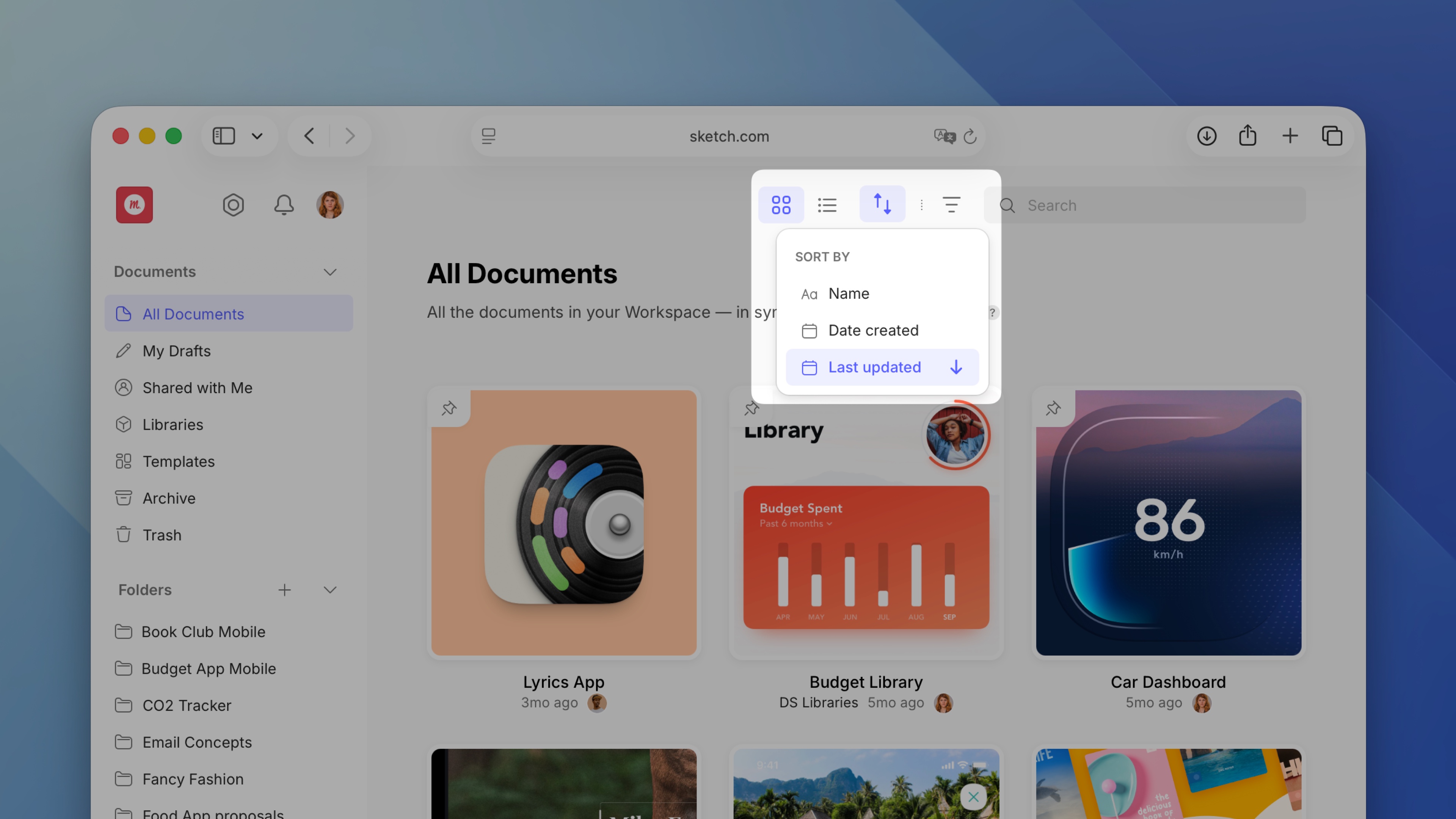
*Sort documents by name, date created, or last updated — in ascending or descending order*
## Opening and viewing documents in the iOS app
You can open local Sketch documents via the [Files app](https://support.apple.com/en-za/HT206481) on your device, or from another app such as Google Drive or Dropbox. In the Files app, you can also press on a Sketch document’s thumbnail to use [Quick Look](https://support.apple.com/en-za/guide/mac-help/mh14119/mac) to preview it.
> **Note:** Keep in mind that local documents won’t update in real-time and you won’t be able to use mirroring with them.
### Opening documents via Handoff in the iOS app
You can use Apple’s [Handoff](https://support.apple.com/en-us/HT209455) feature to quickly open a document you’re editing on your Mac on your iPhone/iPad, or vice versa.
To do this, you’ll need to be running Sketch on all of your devices and they’ll need to follow Apple’s requirements for Handoff (such as being signed into the same iCloud account).
### Mirroring documents in the iOS app
If you’re working on a document in the Mac app, you’ll see it listed under **From Your Mac** in the Workspace view. Tap on the document’s thumbnail to open it, then tap on the (Mirror) icon to start mirroring.
When you switch between frames and make edits in the Mac app, those changes will reflect in real-time in the iOS app.
> **Note:** Mirroring requires an internet connection on both your Mac and iPhone, but they do not have to be physically tethered via USB or even share the same Wi-Fi network.
### Real-time updates in the iOS app
When you’re viewing a Workspace document in the iOS app that someone else is editing in the Mac app, you’ll see any changes they make as updates in real-time. As the iOS app is for viewing documents and prototypes only, you won’t be able to edit or collaborate in real-time. To edit documents in real-time, open them in the Mac app.