# Selecting layers
> Learn how to select layers in Sketch with the help of our step-by-step guides and video tutorials.
**URL:** https://www.sketch.com/docs/designing/layer-basics/selecting-layers/ | **Last updated:** 2026-01-23
---
> **Note:** You’ll find a full list of selection commands and their keyboard shortcuts under **Edit** > **Select** in the Menu Bar.
## Selecting individual layers
You can select individual layers directly on the Canvas, or via the Layer List.
To select a layer on the Canvas, simply click on its visible area. You’ll see selection handles appear around that layer (if you can’t see these, head to **View** > **Canvas** > **Show Layer Selection**).
As you hover over layers on the Canvas, you’ll see their corresponding name highlighted in the Layer List.

*Click in any layer on the Canvas to select it*
If you have a hollow shape (with a border, but no fills) that you’ve already selected, you can click on the area with no fill to select a layer behind it. You can still drag within a shape’s hollow area to move it.

*How to select a layer that sits behind a hollow shape*
> **Note:** To select a frame, click on its on-Canvas title or hold ⌘ and click on an empty space within the frame itself.
You can select any layer by clicking on its name in the Layer List. As you hover over layer names, you’ll see them highlighted on the Canvas.

*Hover over a layer name to see it highlighted on the Canvas, and click to select it*
You can change your selection within the Layer List, and navigate in and out of groups and Symbols, with [keyboard shortcuts](/docs/shortcuts/#selecting-layers).
## Selecting multiple layers
Like selecting layers, you can select multiple layers both on the Canvas and in the Layer List.
Select your first layer, hold ⇧, then click on another to add it to your selection. Clicking on a layer you’ve already selected while holding ⇧ will remove it from your selection.

*Select a layer, then hold Shift and click to select additional layers*
You can also click-and-drag on an empty space on the Canvas to create a marquee and select multiple layers. To start your marquee from a non-empty space (such as on a large background layer), press X and then click and drag your marquee.

*Hold X to drag a marquee across a non-empty space*
Hold ⌥ while you drag a marquee to only select layers and frames that are completely within your selection area. Hold ⌘ to ignore groups (and frames) in your selection and only select the layers within them. You can also combine these two actions.
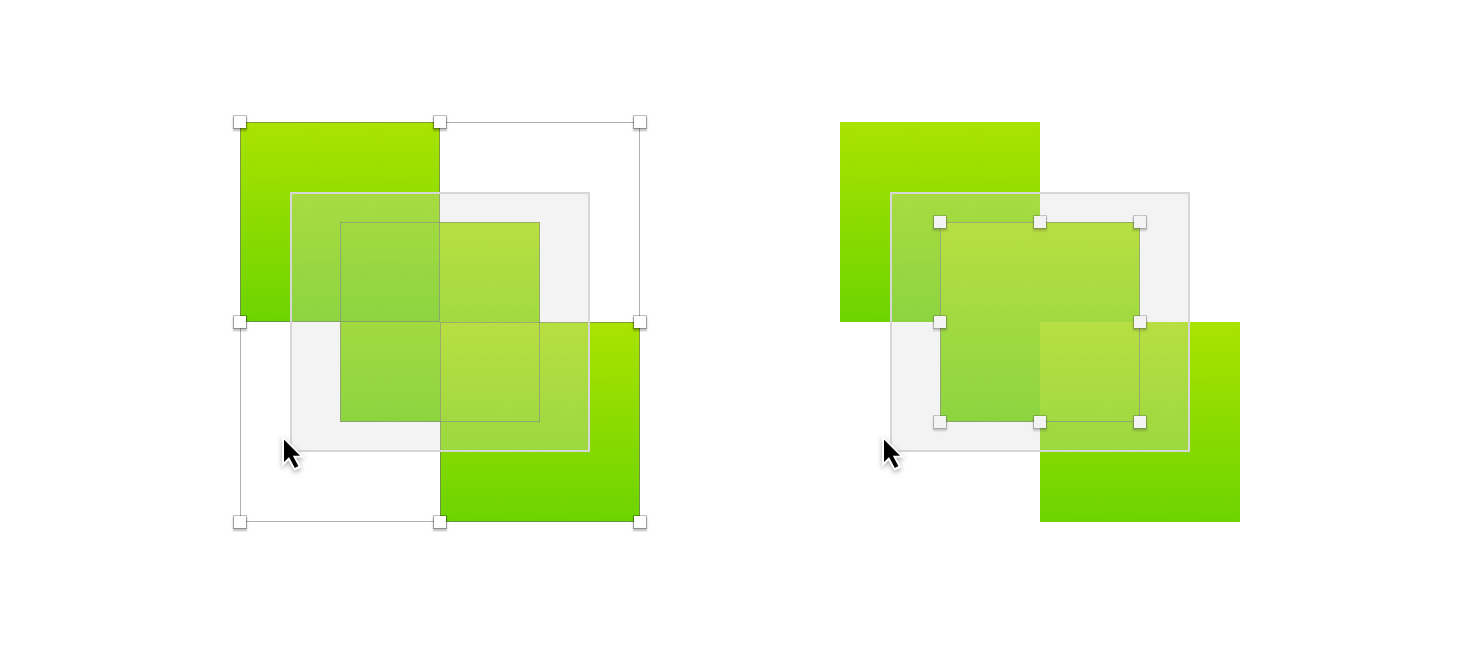
*On the left: Shift-drag. On the right: Shift-Option-drag*
> **Note:** If you press and hold ⌥⌘ when you have already selected layers, this won’t affect your selection and will instead move them on the Canvas, even if your cursor isn’t positioned over them.
Hold ⌘⇧ while you drag a marquee to remove any currently selected layers from your selection and add any unselected layers within your selection area.
There are a few different ways you can select multiple layers in the Layer List.
Click and drag across layer names to select adjacent layers. For more accuracy, you can click the first layer in your intended selection, hold ⇧ and click the final layer in your selection. This will include all layers between the first and final selection.
Selecting a layer in the Layer List and pressing ⌘A selects all layers inside its parent group.

*Select a layer, then press ⌘A to select all layers inside the parent group.*
Selecting a layer in the Layer List and pressing ⌘A selects all layers inside its parent group.

*Select a layer, then press ⌘A to select all layers inside the parent group.*
To select multiple, non-adjacent layers, click each layer individually while holding ⌘. Clicking a selected layer again while continuing to hold ⌘ will remove it from your selection.

*As well as selecting consecutive layers by holding Shift, you can hold Command to select/deselect non-consecutive layers*
## Selecting overlapping layers
If you have two or more layers overlapping, hold ⇧ and right/secondary-click on them to bring up the quick layer selection contextual menu. From here, you can select from any of the overlapping layers immediately below your cursor. As you hover over the menu options, you’ll see a highlight around the corresponding layer on the canvas.

*Use the contextual menu to highlight and select from a group of selected layers*
## Measuring distances between layers
To measure distances between different layers on the Canvas, select the first layer, hold ⌥, and hover over the layer you want to measure against. To measure against a layer that’s inside a group, you’ll need to hold ⌘ as well.

If you’re measuring the distance to a text layer, holding ⌥ will measure to the text’s bounding box. Holding ⌃⌥ will measure to the text’s baseline (from the bottom) or cap height (from the top).

*How to measure between text layers*
You can also hold ⌘⌥ to measure distances between a layer you selected against a layer inside a Symbol. Similarly, hold ⌥ to measure between layers inside Symbols.

*How to measure between layers inside a Symbol*
> **Note:** You can change the colors of the measuring guides via the **Canvas** tab in [Settings](/docs/interface-and-settings/mac-app-settings/canvas/).