# Renaming layers
> Learn how to rename layers in Sketch with the help of our step-by-step guides and video tutorials.
**URL:** https://www.sketch.com/docs/designing/layer-basics/renaming-layers/ | **Last updated:** 2026-04-07
---
## Renaming a single layer
Naming your layers can help to keep your Sketch files organized and make them easier for others to work with.
When you create a layer, Sketch will automatically give it a name based on its type or content, but it’s often necessary to rename them to something more descriptive.
When you select a layer in the Layer List, you can use **Edit** > **Rename** or press ⌘R to rename it, like you would with a file in Finder. Type a new name, then press **Enter** ⏎ to confirm. You can also rename pages using the same shortcut.
## Renaming multiple layers
For complex documents, or simply to save some time, you can select multiple layers and quickly rename them in just a couple of clicks.
Start off by [selecting the layers](/docs/designing/layer-basics/selecting-layers/) you want to rename, then use **Edit** > **Rename** or press ⌘R. Alternatively, you can right/secondary-click on your selected layers and choose **Rename** from the contextual menu.
To rename all layers on your current page without selecting them first, you can use **Edit** > **Rename All**.
In the dialog that appears, you can (optionally) match a specific part of a name to rename, change their case, and add numbering, alphabetical sequencing, and dimensions. If you choose to rename all layers on a page, you can also filter the list of layers to only rename layers with certain words or phrases.
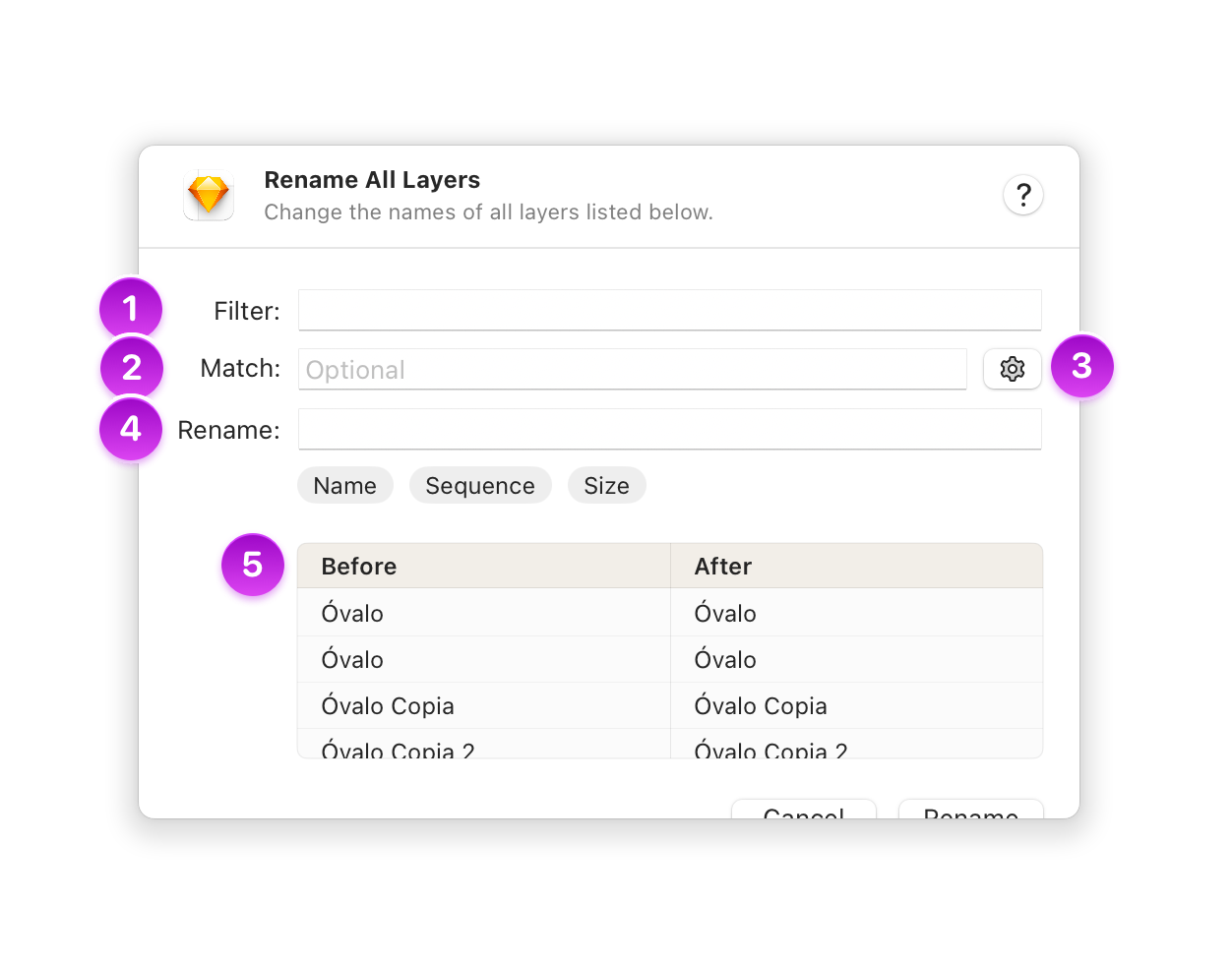
*The different options in the Rename All Layers dialog*
1. The **Filter** field only appears if you’ve opted to rename all layers on the current page. You can use this to include and rename only layers whose existing names contain a specific word or phrase.
2. **Match** works much like Find and Replace, where you can change whole words or fragments within current layer names. Layers that don’t match your input will appear faded in the preview pane. You can also use Match without Rename if you simply want to remove specific fragments from your layer names.
3. Optional Match settings include using **Regular Expression** syntax, as well as **Match Case**, which makes matches case sensitive. For example, if you have layers named **Oval**, then **oval** won’t be counted as a match.
4. Use the **Rename** field to define what your layer names (or matched fragments) will change to. You can also use the dropdown + to add different modifier token combinations. Drag them forward or backward in any order that suits you — or remove them entirely.
Modifier tokens include:
* **Name** adds the current name of the layer in full, either as you originally wrote it, or changed to uppercase or lowercase.
* **Sequence** adds an ascending or descending sequence to the name, either numerical or alphabetical.
* **Size** represents the layer’s size as width, height, or both. Note that, for ease of use, we add the letter x between width and height — not the multiplication symbol ×.
5. The preview pane shows the layers you selected or filtered for renaming (before), and how they’ll change depending on what renaming options you choose (after). You can drag layers in the preview pane to reorder them, or click the reverse button to flip the order of all layers in the list.
Once you’ve finished renaming your layers, press the **Rename** button to confirm your changes. You can always undo any changes you’ve made by pressing ⌘Z.
> **Note:** Want to speed up future layer renaming? You can rename another set of layers using the last renaming format you used via **Edit** > **Rename with Last Format**.