# Duplicating layers
> Learn how to duplicate layers in Sketch with the help of our step-by-step guides and video tutorials.
**URL:** https://www.sketch.com/docs/designing/layer-basics/duplicating-layers/ | **Last updated:** 2026-04-07
---
To duplicate a layer on your Canvas, hold down ⌥ and drag the layer. The original layer will stay in its place.
> **Note:** Releasing ⌥ simultaneously or slightly before releasing your mouse (or trackpad) will duplicate the layers instead of moving them.
Duplicating a layer with a default name increments the number — for example, "Frame 1" becomes "Frame 2" or "Oval 3" becomes "Oval 4". If you’ve renamed the layer, the copy keeps the same name.
You can also press ⌘D to duplicate a layer. Where the duplicate appears will depend on whether you have the **Offset duplicated layers** option enabled, which you’ll find in **Sketch** > **Settings** > **Layers**.
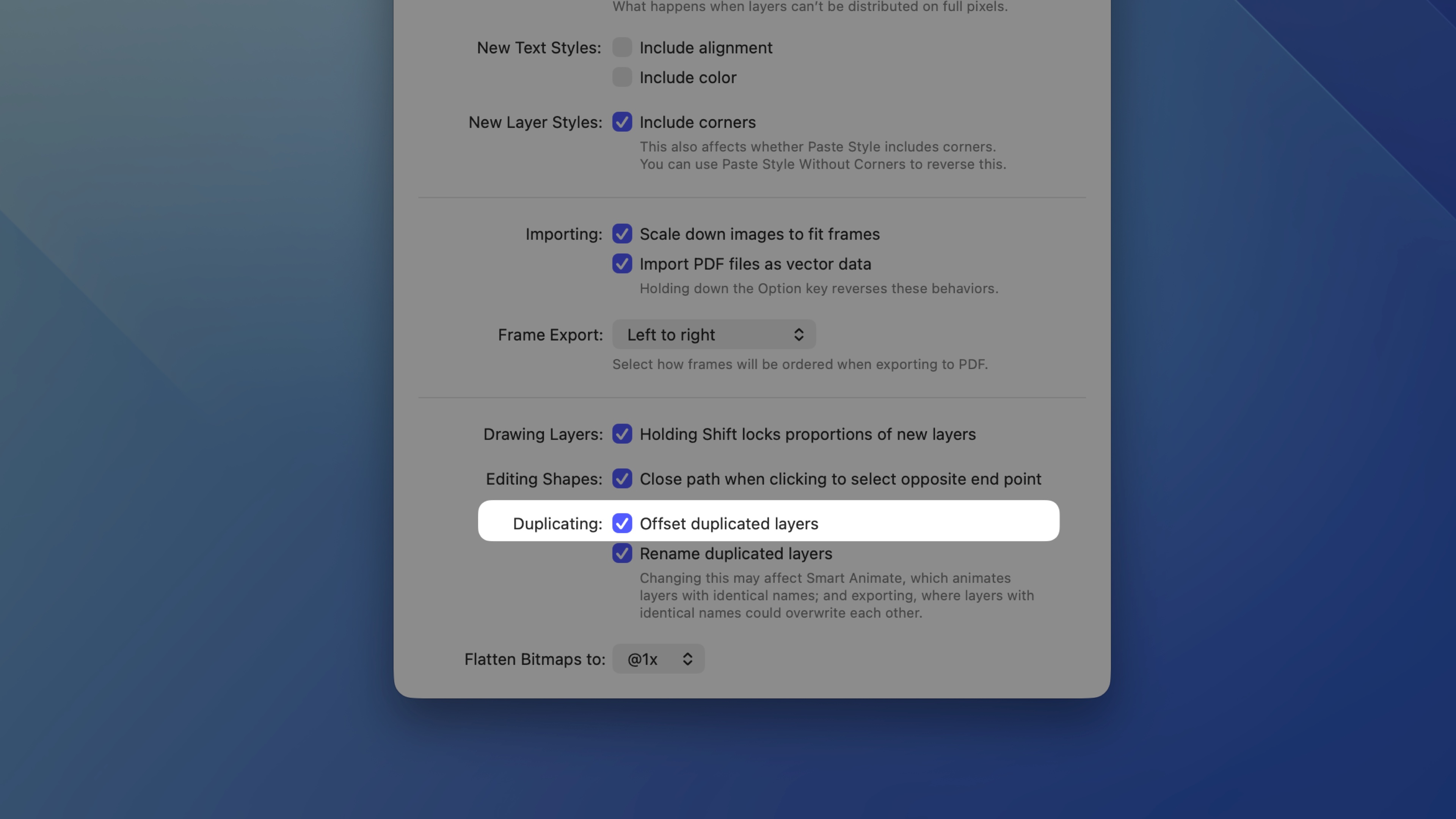
*Find the Offset duplicated layers option in Sketch > Settings > Layers*
After duplicating a layer or group by holding ⌥ and dragging it to a new position, you can press ⌘D to create further duplicates at the same offset — based on the distance between the previous layer and the one before that. Your duplicates will always follow the most recent offset.
By default, duplicates are placed above the original layer. Holding ⇧ when using either ⌘D or selecting the **Edit** > **Duplicate** menu option will place the new layer below the original layer.